1 Choose your platform
Which ACS product are you importing into? This sets the columns and format of your file.
2 Upload your CSV
Converting for . Change
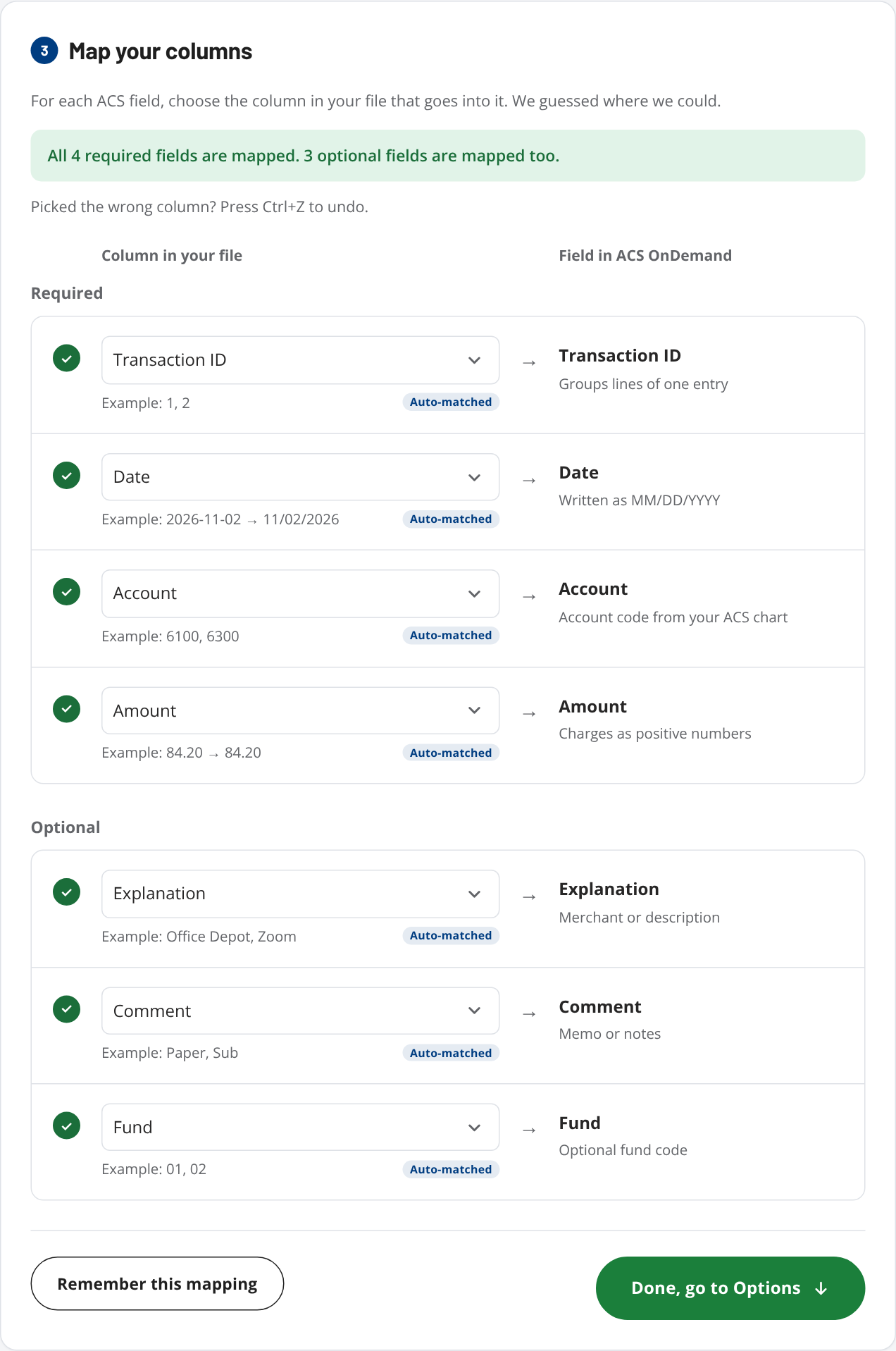
3 Map your columns
Upload a file, or try the sample, and we'll match your columns to the ACS fields here.
For each ACS field, choose the column in your file that goes into it. We guessed where we could.
4 Options
Date format and amount settings appear here once your file is loaded.
5 Review and export
Review a preview of your converted file and download it here.
Preview
How your file will look when you export itUnlocked with .
A free CSV converter for ACS Realm and ACS OnDemand imports
If you do the books for a church or ministry, you have probably downloaded a CSV of credit card charges or expenses and found that ACS will not accept it as it is. ACS Realm and ACS OnDemand each expect specific columns, dates written MM/DD/YYYY, and amounts as plain numbers. ACS File Converter reshapes your file into that layout so the import goes through the first time.
It is built for church finance staff, administrators and bookkeepers. There is nothing to install and no account to create. Choose your platform, upload your CSV, match your columns to the ACS fields, check the preview and export.
Guides: how to import a CSV into ACS OnDemand, how to import a CSV into ACS Realm, and fixing ACS import errors.
Common questions
What columns does an ACS OnDemand import file need?
The ACS OnDemand general ledger import uses seven columns, in this order: Transaction ID, Date, Explanation, Account, Amount, Comment and Fund. Transaction ID, Date, Account and Amount are required. Explanation, Comment and Fund are optional, and Fund is only included when you map it. Dates are written MM/DD/YYYY.
What columns does an ACS Realm import file use?
The ACS Realm transaction import file this tool writes has eleven columns, in this order: TransactionID, Core Account, Comment, Transaction Date, Transaction Description, Transaction Type, Payee, Reference Number, Amount, Fund and Department. Dates are written MM/DD/YYYY and amounts with two decimals. The Realm version of this tool is still being refined.
Can I convert a credit card or expense report CSV for ACS?
Yes. Upload a CSV from any card, expense or banking system, choose which of your columns is the date, amount, account and so on, and download a new CSV laid out for the ACS import. Common column names are matched automatically, and you can save your mapping for next time.
Where does the conversion happen?
The conversion itself runs in your browser. No account is needed, and you can upload, map and preview your file before deciding to export.
Is ACS File Converter free?
Yes. It is free to use. To export the full file, it asks for a work email address.
What if my dates or amounts are in the wrong format?
The tool reads common date and amount formats, converts them to what ACS expects, and shows any value it cannot read next to the field it belongs to, so you can fix the file or pick a different column before exporting.
FAQs
Setup steps, tips and what this tool checks for you. Choose your platform in step 1 to see only its answers.
ACS Realm FAQs
Set up the import (first time)
-
Add a Core Account for the offset
In your chart of accounts, under Current Liabilities, add a Core Account and set its Account Type to Credit Card.
-
Start a new import
Go to Transactions › General Ledger › Import and click Add New Import. Name the template, then choose Import from File.
-
General settings
- Import File has a header
- Select it
- Field Values Instead of Field Names
- Leave unselected
-
Match settings
- Match by Account
- Code
- Match by Transaction Type
- Code
- Match by Project
- Code
-
Transactions settings
- Offset all entries to a single account
- Check it, then choose the Core Account from step 1
- Use the Amount field to determine debit or credit
- Select it
-
Map the fields
Match each Realm field to the column of the same name:
Realm field Choose Transaction ID Your TransactionID column Fund Your Fund column, if you use funds Core Account Your Core Account column Comment Your Comment column Transaction Date Your Transaction Date column Transaction Description Your Transaction Description column Transaction Type Your Transaction Type column, and set a default such as Credit Card Charge Payee Your Payee column Amount Your Amount column Click Next, review for errors, then click Finish.
Tips
- Keep charges as positive numbers. Realm works out debit or credit from the Amount field.
- Add any extra segments you use, such as Fund or Department, as columns in your file. Realm also lets you set a default value for a field in the mapping step, which is handy when every row shares one value (most defaults are account codes).
- If Realm shows errors, click the ellipsis on the row and choose Edit. For many errors it's quicker to fix your file and upload it again.
- Account codes must match the codes in your Realm chart of accounts.
What this tool checks for you
- Transaction dates are written as MM/DD/YYYY.
- Amounts are plain numbers with two decimals (no $ signs or thousands commas).
- Every row has a TransactionID, a Core Account, a Transaction Date and an Amount.
- Every Realm column is included in your file, in the right order. Columns you skip are left blank.
Account codes must still match the codes in your Realm chart of accounts. Realm will flag any that don't when you import.
ACS OnDemand FAQs
Set up the import (first time)
-
Open the import
Go to General Ledger › Transactions › Enter/Post Transactions › Add/Edit Transactions, click Import, and choose your file.
ACS OnDemand is desktop software and reads the file from your computer, so save it in your Downloads folder.
-
Set up the Configure tab
- Import File has a header record
- Check it
- Lookup Account by
- Code
- Lookup Source by
- Code
- Lookup Project by
- Code
- Lookup Payee by
- Last, First, Middle Initial
-
Choose how charges offset
- Offset all entries to a single account
- Check it, then enter your offset account (for example 01-2190-001)
- Use Amount field to determine debit/credit entry type
- Select it
Offsetting to a liability account mirrors how a credit card works and is the recommended choice. A cash account is the simpler option. Your bookkeeper can advise. Then click Next.
-
Map the columns
On the Mapping tab, match each ACS field to the column of the same name:
ACS field Choose Transaction ID Your Transaction ID column Date Your Date column Explanation Your Explanation column Account Your Account column Amount Your Amount column Comment Your Comment column Click Save Map, give it a name so you can reuse it, then click Next.
Tips
- Don't add an offset row to your file if you use Offset all entries to a single account, or every charge will be offset twice.
- Keep charges as positive numbers. ACS works out debit or credit from the Amount field.
- On the View Import Data tab you can preview the values before importing. ACS only imports transactions that have no errors, so anything with a problem has to be fixed and re-imported, or entered by hand in Add/Edit Transactions.
- Payees are optional. Payee lookups can cause import errors, so most setups skip them.
- If you offset to a liability account, post a general journal entry that offsets it with cash when the balance is paid.
What this tool checks for you
- Dates are written as MM/DD/YYYY.
- Amounts are plain numbers with two decimals (no $ signs or thousands commas).
- Every row has a Transaction ID, a date, an account and an amount.
Account codes must still match the codes in your ACS chart of accounts. ACS will flag any that don't when you import.